
Creating a driver for Windows: Part 1 - Introduction
In this series of tutorials, I would like to explain how to write drivers for Windows: where to start, how the driver model works, and answer some of the most common questions in this area. As a practical example, we will also write a very simple process protection driver.
What Is a Windows Driver?
Let’s begin with a brief explanation of what a Windows driver is.
Windows kernel drivers usually have the .sys extension and are, in fact, standard PE (Portable Executable) files that run in kernel mode.
Every driver has an entry point called DriverEntry. The code located in this function is executed when the driver is loaded by the Windows kernel, not when it is unloaded.
That is enough theory for now-let’s move on to setting up the development environment.
Required Tools
You will need the following software:
- Visual Studio 2022 Community Edition
- Windows Driver Kit (WDK)
- WinDbg
- VirtualKD 3.0
- VMware or VirtualBox
Creating the Driver Project
- Install Visual Studio
- Install the WDK that matches your Visual Studio version.
- Create a new project: Windows Kernel Mode DriverChoose Empty Driver
Driver Entry Point Example
Declare the driver entry point as follows:
#include <ntifs.h>
#include <ntddk.h>
#include <ntdef.h>

extern "C" DRIVER_INITIALIZE DriverEntry;

extern "C" NTSTATUS DriverEntry(PDRIVER_OBJECT DriverObject, PUNICODE_STRING RegistryPath)
{
    UNREFERENCED_PARAMETER(DriverObject);
    UNREFERENCED_PARAMETER(RegistryPath);

    DbgPrint("Hello world!\n");

    return STATUS_SUCCESS;
}
If the driver loads successfully, this message will appear in the kernel debugger output.
Build Configuration
In the project properties, select the Windows 7 target platform for the driver.
Setting Up Kernel Debugging
- Install Windows 7 inside a virtual machine.
- Install VirtualKD inside the guest OS.
- Reboot the virtual machine.
After installation, Windows will offer two boot options:
- Normal Windows 7
- Windows 7 Debug Mode
Connecting WinDbg
Start VirtualKD VMMon on the host.
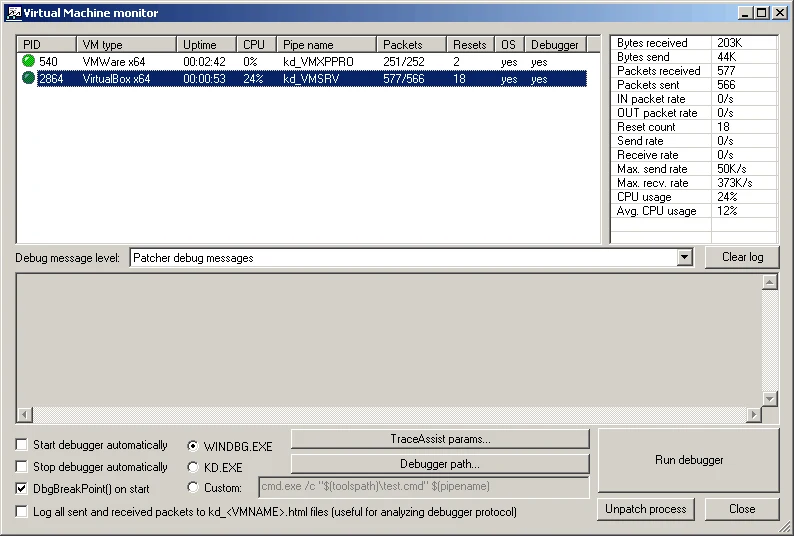
- Power on the virtual machine.
- When the VM indicator turns green, click Run Debugger.
- WinDbg will open and wait for the target system.
Now, inside the VM boot menu, select Windows Debug Mode.
Once connected, WinDbg will break into the kernel. Press F5 to continue execution.

At this point, you can already see:
- Kernel base address
- Loaded kernel modules

Loading the Driver
Copy your compiled .sys file into the virtual machine.
Create a .bat file inside the VM with the following contents:
sc delete MyDriver
sc create MyDriver binPath= "C:\Users\User\Documents\MyDriver1.sys" type= kernel
sc start MyDriver
Run this script as Administrator.
If everything is correct, you will see your DbgPrint message appear in WinDbg.
Tags: windows, c, programming
Comments